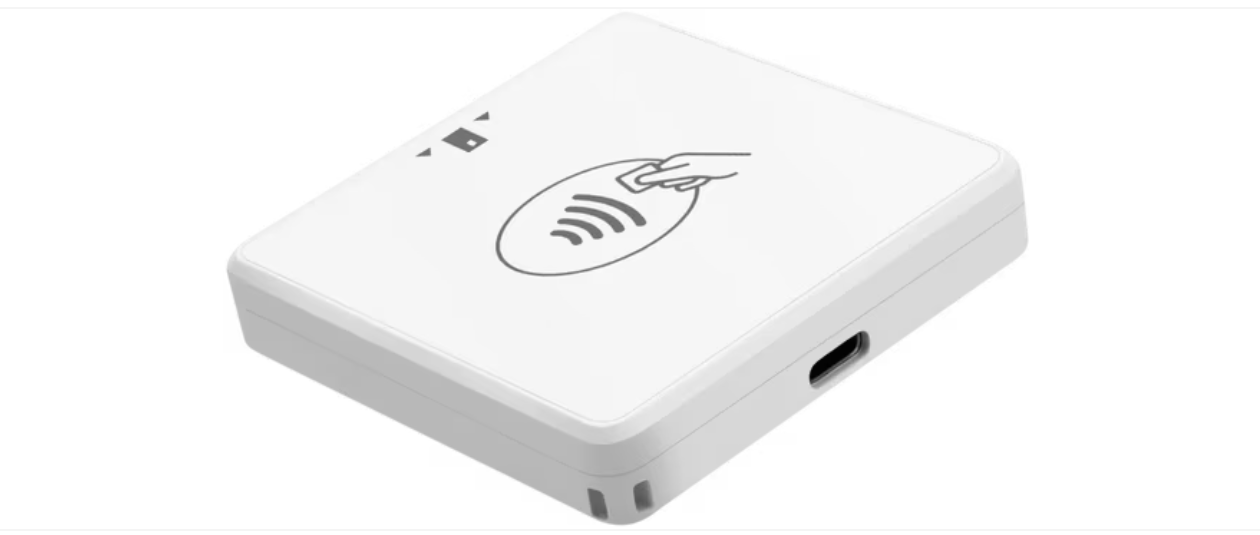
The Omella Go, technically known as the PAX D135, is a compact card reader that connects to the Omella app on an Android or iOS device through Bluetooth.
It is designed for cashiers and event staff who need to accept in-person payments at school events, fundraisers, fairs, and other activities.
Use this FAQ to prepare your reader, connect it to the Omella app, accept in-person payments, and troubleshoot common issues.
Jump here!
| 🛠️ Getting Started |
💳 Using It |
🆘 Support |
|
|
|
|
📋 Before Your First Event
What should I do before using the Omella Go?
Complete these steps before your first live event:
- Review the Customer Guide: Firewall Settings and share it with your IT team.
- Charge the Omella Go for at least two hours.
- Download the Omella app and sign in.
- Add each cashier as an Assistant using their own email address.
- Connect the reader through the Omella app.
- Connect to the same Wi-Fi network you will use during the event.
- Process a $1 test payment to confirm that everything works.
- Keep the charging cable available during the event.
If you need a payment page for testing, copy this template to your organization by clicking Save.
Why should I test on the event's Wi-Fi?
School networks may use firewalls, content filters, or TLS inspection that can block the services required to connect the reader and process payments.
A test on cellular data or a personal network does not confirm that the school's Wi-Fi will work. Always test using the same network you plan to use during the event.
If the payment works on cellular data but not on the school's Wi-Fi, share the Customer Guide: Firewall Settings with your IT team.
Can Omella help us prepare for our event?
Yes. Send the event date, time, and Omella payment page to help@omella.com. This helps our team prepare in case you need assistance.
📲 Set Up the Omella Go
Where can I download the Omella app?
Download the app and sign in using your existing Omella credentials:
How do I turn the Omella Go on or off?
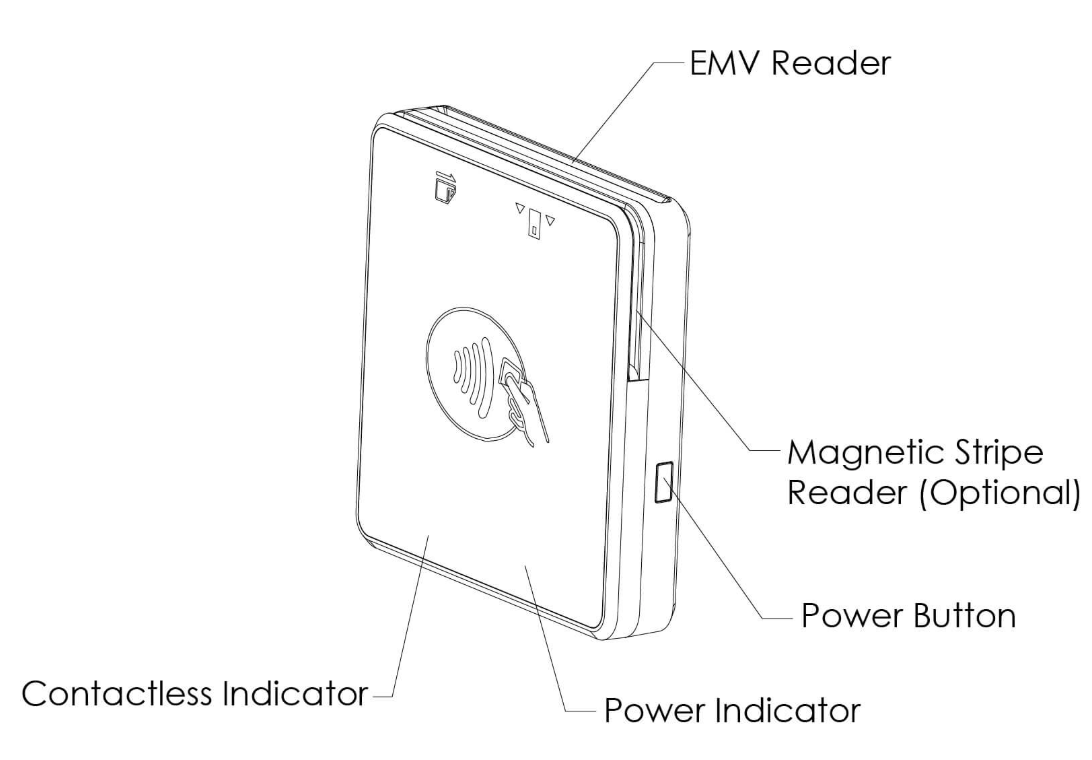
- Turn it on: Press and hold the power button until the reader beeps, then release it.
- Turn it off: Press and hold the power button until all four colored lights flash at the same time.
How do I connect the Omella Go?
Connect the reader through the Omella app, not directly through your phone or tablet's Bluetooth settings.
- Turn on the Omella Go.
- Enable Bluetooth on your phone or tablet.
- Open the Omella app.
- Tap Enable Card Reader in the black bar at the top.
- Select Omella Go.
- Select your reader when it appears under Readers.
- Tap the arrow in the top-left corner to return to the dashboard.
Once connected, the black bar will display Reader Ready – Select a Space. Select the Space and payment page you want to use.
The first connection may take approximately five minutes while the reader installs required updates. Keep it charged, turned on, and close to your mobile device. Future connections should happen much faster.
🙋 Cashier Access and Spaces
How do I set up cashier access?
Add each cashier to every Space where they will process payments:
- Open the appropriate Space.
- Add the cashier as a member using their own email address.
- Assign the Assistant role.
- Confirm that they can sign in to the Omella app.
- Repeat for any additional Spaces they need to access.
Access does not automatically carry over between Spaces.
Each cashier should use their own account. Do not share one account or administrator credentials among multiple cashiers. Individual accounts make it easier to track activity, manage access, and remove access after the event.
What can an Assistant access?
Assistants can use the payment pages assigned to them and process purchases. They cannot:
- See how much a page has collected
- View reports
- Issue refunds
- Access financial totals or other financial data
If a cashier cannot find the required page, confirm that they were added to the correct Space as an Assistant.
How should cashier accounts be protected?
Cashiers should:
- Keep their login information private
- Access only the Spaces required for their role
- Lock their phone or tablet when leaving the station
- Never use or share administrator credentials
After the event, remove access for temporary staff or volunteers who no longer need it.
💳 Accept Payments
How do I process a payment?
- Open the appropriate payment page in the Omella app.
- Select the customer's items.
- Review the order and continue to checkout.
- Select Charge with Card Reader.
- Ask the customer to tap, insert, or swipe their card.
- Wait for the payment confirmation before starting another transaction.
Do not remove an inserted card until the app indicates that the transaction is complete.
How should the customer present their card?
- Contactless card or digital wallet: Hold it within one inch of the contactless area at the top of the reader until it is recognized.
- Chip card: Insert it completely and leave it in the reader until the payment is complete.
- Magnetic stripe: Place the card fully inside the swipe slot with the magnetic stripe facing the reader, then swipe smoothly in either direction.
Can multiple cashiers use the same reader?
Different cashiers can use the same Omella Go, but the reader can connect to only one phone or tablet at a time.
For multiple cashier stations, use a separate reader and mobile device at each station whenever possible. Each cashier should sign in with their own Omella account.
🔋 Battery and Indicator Lights
How should I charge the Omella Go?
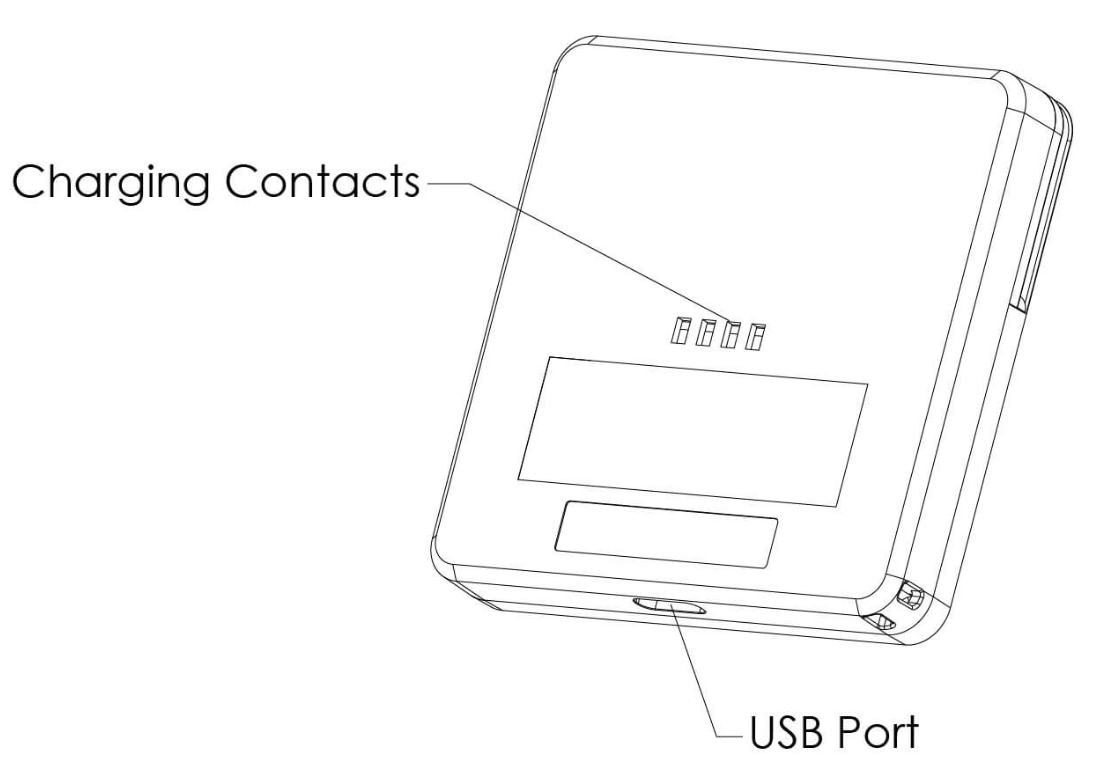
Charge the reader for at least two hours before its first use. If the battery is completely empty, allow it to charge fully and then disconnect it.
Only use a PAX-approved power supply. An unsupported charger may damage the reader and void its warranty.
Do not charge the reader continuously for more than 24 hours, as this may shorten the battery's lifespan.
What do the indicator lights mean?
| Indicator | Meaning |
|---|
| Green light | Battery level is above 20% |
| Red light | Battery level is below 20% |
| Flashing red light | Battery is too low; the reader will turn off |
| Slowly flashing red light | Reader is charging |
| Solid green light while charging | Reader is fully charged |
| Orange with a solid red or green light | Reader is ready to connect |
🧩 Troubleshooting
Why can't I find or connect the Omella Go?
Confirm that:
- The reader is turned on and sufficiently charged.
- Bluetooth is enabled.
- The Omella app has permission to use Bluetooth.
- The reader is close to your phone or tablet.
- You selected Omella Go under Enable Card Reader.
- The reader is not connected to another device.
- Your phone or tablet has a stable internet connection.
If it still does not connect, turn the reader off and on, reopen the Omella app, and try again.
Why does the reader keep disconnecting or turning off?
Check the battery, Bluetooth permissions, internet connection, and distance between the reader and mobile device.
A flashing red light means the battery is too low. Charge the reader fully before reconnecting it.
Why does the reader work on cellular data but not on Wi-Fi?
The school's firewall may be blocking a domain or service required by Omella or the payment processor. TLS inspection can also interfere with the reader's secure connection and cause a device unreachable message.
Share the Customer Guide: Firewall Settings with your IT team. They may need to allow the required domains and add a TLS inspection bypass.
Why isn't the reader detecting the card?
Try the payment method again:
- For contactless payments, hold the card close to the top of the reader and keep it still.
- Remove the card from a wallet containing other cards.
- For chip payments, insert the card completely and leave it in place.
- For magnetic stripe payments, confirm that the stripe faces the reader and swipe smoothly.
- Try another supported payment method or card if necessary.
What should I do if a payment fails or shows an error?
Before trying again, check whether the transaction appears in Omella. This prevents accidentally charging the customer twice.
If no transaction appears:
- Confirm that the reader is connected.
- Check the reader's battery.
- Confirm that the mobile device has a stable internet connection.
- Make sure the cashier is using the correct page and Space.
- Try another card or switch temporarily to cellular data.
If the customer appears to have been charged but you cannot confirm the transaction in Omella, do not charge the card again. Contact Omella Support.
🔒 Security and Care
How can I tell if the Omella Go has been tampered with?
Stop using the reader immediately if:
- Blue indicators 1 and 4 are on: The reader may currently be compromised.
- All four blue indicators are on: The reader may have been tampered with previously.
Disconnect the reader and keep it secure. Do not reset, open, or attempt to repair it. Contact Omella Support for instructions.
What should I do if cashier credentials are compromised?
Change the affected password or remove the user's access immediately.
Contact help@omella.com if you suspect unauthorized access or activity.
How should I clean and protect the reader?
Use a soft, lightly dampened cloth to clean the outside.
- Do not use abrasive or industrial-strength cleaners.
- Do not immerse the reader in liquid.
- Do not spray cleaners into the reader or its ports.
- Replace damaged charging cables.
- Keep the reader away from excessive heat, dust, and strong electromagnetic environments.
- Do not shake, drop, open, or attempt to repair it.
✉️ Get Help
What information should I send to Omella Support?
Contact help@omella.com and include:
- A description of the issue
- The indicator lights displayed
- The type of phone or tablet being used
- Whether you are using Wi-Fi or cellular data
- The Omella payment page
- The cashier's email address and Space
- Whether the issue affects one or multiple stations
- The event date and time, if applicable